How to Stop Multiple Votes in a WordPress Poll
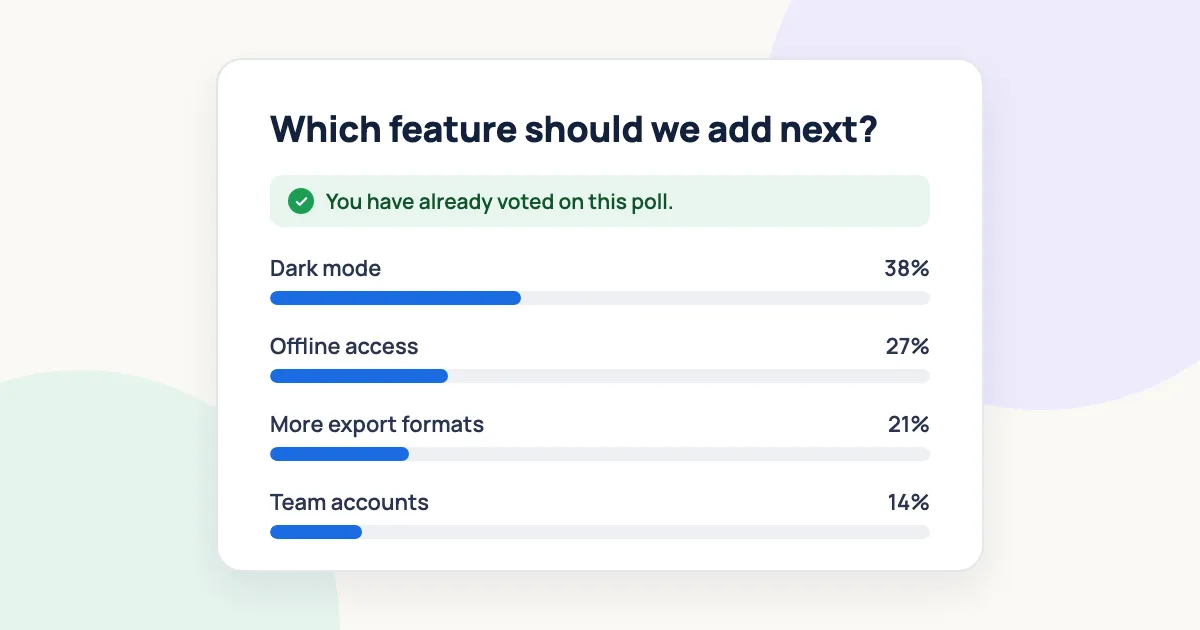
To stop people voting twice in a WordPress poll, turn on Recognize returning voters in the poll’s Settings → Access. Then choose how YOP Poll recognizes them: by browser, IP address or account. Everything in the main steps works in the free plugin.
No single check stops every determined person. A browser check is easy to get around, and a sign-in check is hard to get around but means fewer votes. This guide shows what each method stops, what beats it, and which setup fits your poll.
Key Takeaways
- By default, YOP Poll lets anyone vote as often as they like. Tick Recognize returning voters to change that.
- The browser check suits casual polls. For contests or prizes, let only signed-in users vote and recognize them by their account.
- The stricter your privacy setting, the fewer checks work, because the poll stores less about each voter.
- Bans, spam protection and the vote logs help with the cases the settings miss.
What you need
- A WordPress site with the free YOP Poll plugin and a poll. If you haven’t made one yet, follow how to create a poll in WordPress first.
- For the Pro options near the end (browser fingerprint and confirmed email voting): YOP Poll Pro.
How YOP Poll recognizes a returning voter
When Recognize returning voters is on, YOP Poll checks each new vote against earlier ones using the methods you tick. If any one of them matches, the vote is refused.
| Method | What it stops | What gets around it | Free or Pro |
|---|---|---|---|
| A cookie in their browser | Voting again from the same browser | A private window, clearing site data, another browser or device | Free |
| Their IP address | Voting again from the same internet connection | A different network, such as mobile data. It also blocks everyone sharing one connection, like an office or school | Free |
| Their account on this site | A signed-in member voting twice | A second account, if anyone can register on your site | Free |
| A browser fingerprint | Voting again from the same browser, even after clearing site data | Another browser or device | Pro |
| The email they gave | Voting twice with the same email address | A different email address, unless votes must be confirmed by email | Pro |
Despite its name, A cookie in their browser saves a random ID in the browser’s storage rather than a cookie. Either way, it recognizes the browser, not the person using it.
You can tick several methods at once. The plugin’s own advice applies: “Each method can be worked around; several together are harder to beat.”
Step 1: Turn on Recognize returning voters
- Go to YOP Poll → All Polls and open your poll.
- Click the Settings tab, then Access on the left.
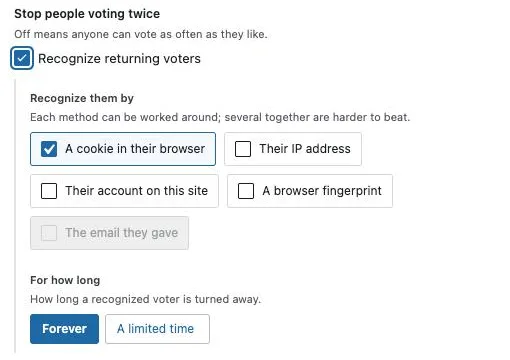
- Under Repeat voting, tick Recognize returning voters.
A cookie in their browser is ticked straight away. For a casual poll, that’s often enough.
Step 2: Choose how voters are recognized
Under Recognize them by, tick the methods you want:
- A cookie in their browser: stops the same browser voting again. Good for most polls.
- Their IP address: stops the same connection voting again. Skip it if many of your voters share one network, such as a school or office.
- Their account on this site: stops a signed-in member voting twice. Use it when voting needs an account (Step 4).
If your site sits behind a proxy or CDN, every voter may appear to share one IP address. In that case, an administrator can turn on Trust proxy headers, such as X-Forwarded-For under YOP Poll → Settings → General. Only do this when a proxy or CDN really sits in front of your site.
Step 3: Choose how long a voter is turned away
For how long decides whether a recognized voter can ever vote again:
- Forever (the default): one vote per person for the life of the poll.
- A limited time: they can vote again later. Under Then they can vote again, enter a number and pick Minutes, Hours or Days.
For a “vote once a day” poll, choose A limited time and set it to 1 Days. The time is “Counted from their last vote.”
Step 4: Require sign-in for polls that matter
For a contest, a prize or a member vote, let only signed-in users vote:
- Under Who can vote, tick An account on this site.
- Untick Anyone, without signing in. If you leave it ticked, guests can still vote.
- Under Recognize them by, tick Their account on this site.
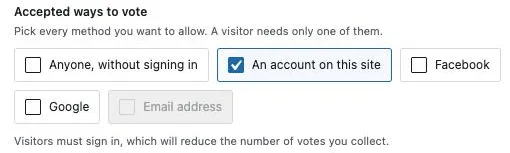
Once only signed-in users can vote, Limit votes per person appears. Tick Cap the votes each person can cast and set Votes allowed, which starts at 1.
Sign-in voting is the strongest free option, but it costs votes. The plugin says it plainly: “Visitors must sign in, which will reduce the number of votes you collect.”
Step 5: Add spam protection against bots
Repeat-vote checks stop people. Spam protection stops automated scripts. Under Spam protection in Access:
- No check is the default.
- Built-in check has the visitor’s browser quietly do a small piece of work before the vote counts. There’s nothing to set up and nothing for visitors to solve.
- A third-party service uses reCAPTCHA, hCaptcha or Cloudflare Turnstile. You add that service’s keys under YOP Poll → Settings → Integrations.
For most polls, Built-in check is the easy upgrade. Every poll also has two protections you can’t switch off. One IP address can cast at most 10 votes a minute on one poll, and a hidden field catches simple bots.
Which setup fits your poll
| Poll | Who can vote | Recognize them by | Also |
|---|---|---|---|
| Casual blog poll (“what should we write next?”) | Anyone, without signing in | A cookie in their browser | Nothing else needed |
| Daily vote | Anyone, without signing in | A cookie in their browser | A limited time, 1 Days |
| Member vote, contest or prize | An account on this site only | Their account on this site | Votes allowed 1, Built-in check |
| Public contest without accounts | Email address (Pro) | The email they gave (Pro) | Confirm by email (Pro), Built-in check |
How privacy settings affect repeat-vote checks
The less a poll stores about voters, the less it can recognize them. You choose this under Privacy · GDPR and CCPA → Consent and what is stored:
- Ask nothing, and keep IP addresses (the default) and Ask each visitor to agree: every method works.
- Ask nothing, and anonymize IP addresses: the browser check and fingerprint stop working. IP matching becomes rough, so a whole group of nearby addresses counts as one voter.
- Ask nothing, and store no IP addresses: guests can’t be recognized at all. The plugin’s note says “Repeat votes cannot be spotted at all.”
If you need a strict privacy setting and one vote per person, use sign-in voting. Their account on this site keeps working under every privacy choice.
What a repeat voter sees
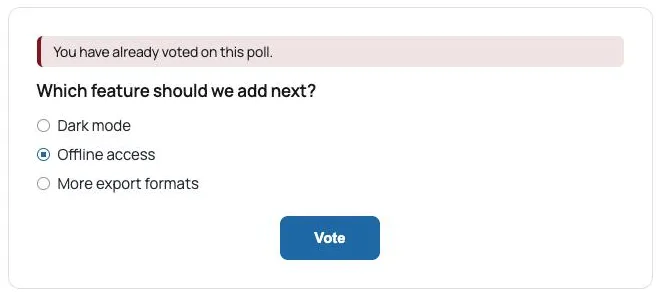
Someone who has already voted sees the results and a short message instead of the ballot. The message appears where Where messages appear puts it, under Settings → Poll → On the page.
If they press Vote anyway, they see “You have already voted on this poll.” You can change both messages under YOP Poll → Settings → Messages, in Refused – already voted and Already voted.
This works with page caching plugins too. The check for an earlier vote runs separately from the cached page.
Ban a voter who gets through
Sometimes one voter slips past the settings. To block them:
- Go to YOP Poll → Bans and click Add new ban.
- Under What to ban, choose IP address, Email address or Username, and enter it.
- Under Where it applies, choose Every poll on this site or One poll.
- Click Add ban.
A banned voter still sees the poll. Their vote is refused when they press the button. Bans match the exact value only, so an IP ban stops working if their address changes.
Find duplicate votes in the logs
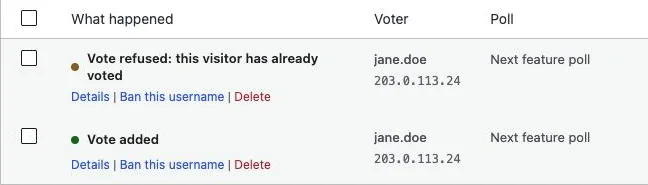
YOP Poll → Logs keeps one entry for every vote attempt, accepted or refused. Refused repeats show as “Vote refused: this visitor has already voted”. Search by username, email or IP to see everything one voter did.
Each log entry has Ban this IP or Ban this username, which fills in the ban form for you.
To remove votes you don’t trust, open the poll’s results and go to the Individual votes tab. Deleting a vote there also lets that voter vote again. The same tab has Export CSV if you want to check the votes in a spreadsheet.
When you need more: YOP Poll Pro
The free checks recognize a browser, a connection or an account. YOP Poll Pro adds two ways to recognize a person without asking them to create an account:
- A browser fingerprint recognizes the same browser even after site data is cleared. A different browser or device still gets through.
- Email address voting, with Confirm by email on the poll’s Email element, holds each vote until the voter clicks a link sent to their address. Without confirmation, “any address is accepted, including made-up ones.” Pair it with The email they gave under Recognize them by.
Pro also adds Facebook and Google sign-in voting. If an open contest needs one vote per person, see what YOP Poll Pro adds.
Common mistakes
- Leaving Recognize returning voters off. It’s off by default, so anyone can vote again and again.
- Ticking An account on this site but leaving Anyone, without signing in ticked. Guests can still vote. Untick it.
- Relying on IP addresses at a school or office. One shared connection means one vote for everyone on it.
- Choosing a strict privacy setting and expecting the browser check to work. Anonymizing or not storing IP addresses turns off the guest checks.
- Treating a poll as proof. Even a well-protected poll shows what the people who chose to vote think, not everyone.
Frequently asked questions
Can YOP Poll limit voting to one vote per person?
Yes. Tick Recognize returning voters in Settings → Access and leave For how long on Forever. For a firm limit, let only signed-in users vote and recognize them by Their account on this site.
Can people still vote twice with the free version?
A determined person can, by switching browser, device or network. That’s true of any poll that doesn’t require sign-in. With sign-in voting and Their account on this site, each account gets one vote. If anyone can register on your site, someone could still create a second account.
Does stopping repeat votes work with caching plugins?
Yes. The page can be cached, because the check for an earlier vote runs as a separate request each time.
Can I allow one vote per day?
Yes. Under For how long, choose A limited time, enter 1 and pick Days.
How do I let someone vote again?
Open the poll’s results, go to Individual votes and delete their vote. They can then vote again.
Next steps
Start with Recognize returning voters and the browser check, then tighten it only if your poll needs it. If you haven’t built a poll yet, create one in a few minutes.
For open contests that need one vote per person without accounts, see what YOP Poll Pro adds.
Written by YOP Team, the author of the plugin.
Questions or corrections: ask in the YOP Poll support forum on WordPress.org (opens in a new tab), or contact us.