How to Make an Image, Video or Audio Poll in WordPress
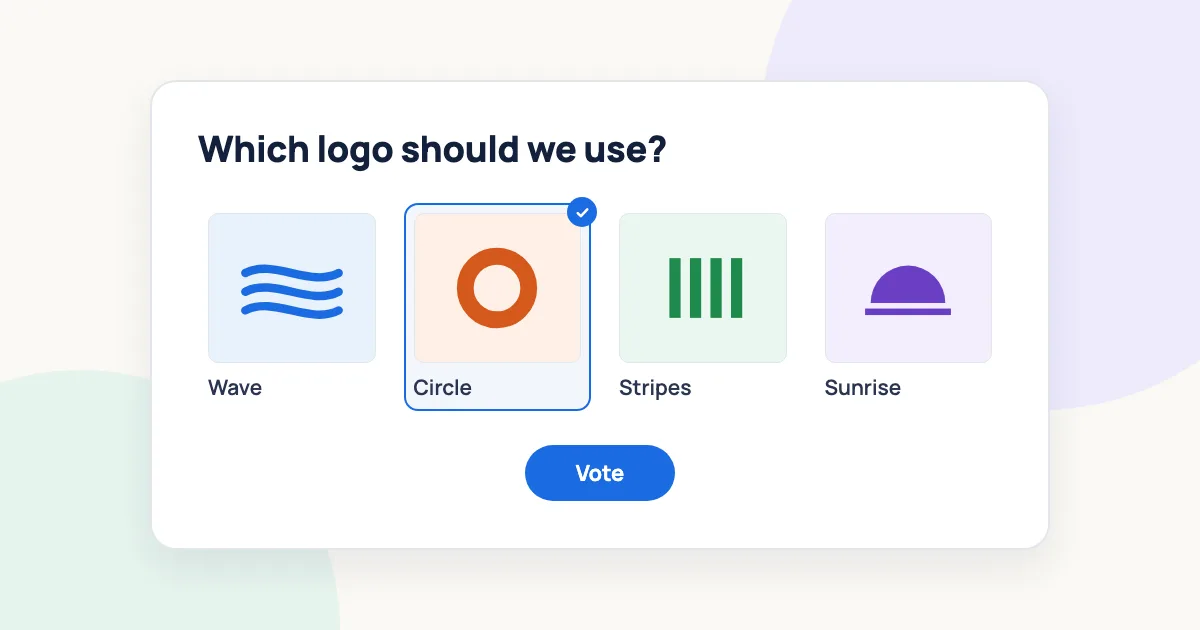
To let visitors vote on pictures, videos or audio clips, add an Image choice, Video choice or Audio choice question to a YOP Poll poll. Each answer gets its own picture, video or clip, and visitors pick the one they like. These three question types are part of YOP Poll Pro.
They suit any vote where seeing or hearing the options matters more than reading them: a logo or cover design, a photo contest, the best video of the month, or a jingle for a podcast.
Key Takeaways
- Image choice and Audio choice take their files from the WordPress Media Library. Video choice takes a YouTube or Vimeo link, or embed code from another video site.
- Each answer keeps a text label. It’s shown with the picture, video or clip, and it’s the name shown in the results.
- Image and video answers come in a grid, as cards, or (for images) as a small picture beside the label. Audio answers are arranged like text answers, vertically, horizontally or in columns, each with its own player.
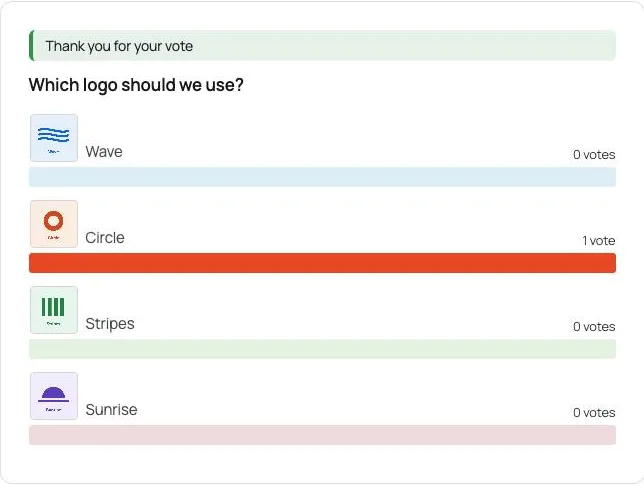
- The results show each answer’s thumbnail, video still or audio player above its bar.
What you need
- A WordPress site with the free YOP Poll plugin and YOP Poll Pro active. In the free version, these question types show a PRO badge: you can preview them, but not add them.
- The pictures or audio files, uploaded or ready to upload to your Media Library. For videos, the YouTube or Vimeo links.
- If you haven’t built a poll before, how to create a poll in WordPress covers the basics.
Step 1: Add an image, video or audio question
- Go to YOP Poll → Add New, or open an existing poll.
- On the Build tab, click + Add to poll.
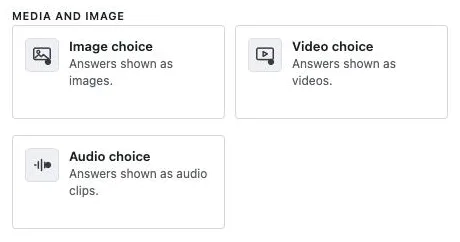
- Under Media and image, choose Image choice, Video choice or Audio choice.
The question is added with two answers, Answer 1 and Answer 2. Click Edit on it, replace the question text, and type a label for each answer. Use + Add answer for more.
Step 2: Give each answer its picture, video or clip
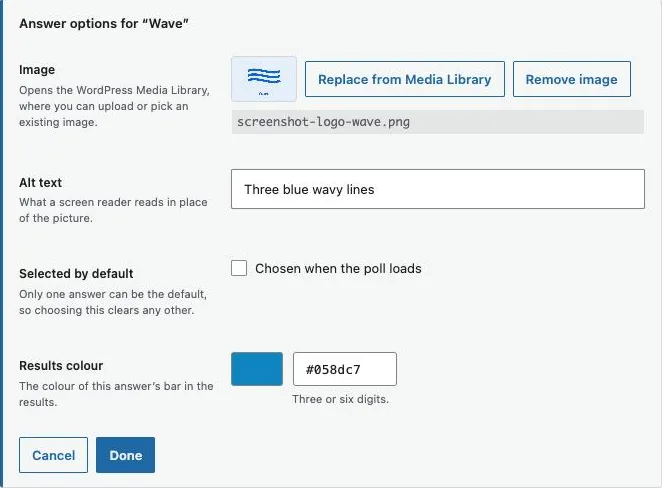
Each answer’s media is set in its own panel. Next to an answer, open the ⋯ menu and choose Answer options….
For an image:
- Click Choose from Media Library. Upload a new picture or pick one you already have, then click Use this image.
- Under Alt text, describe the picture for people using a screen reader. If you leave it empty, the answer’s label is read instead.
- Click Done.
You can also click the picture button at the start of each answer row to open the Media Library straight away.
For a video: paste a YouTube or Vimeo link into the Video box. YOP Poll turns it into a player and shows Ready to show. For other video sites, paste the embed code from the site’s share or embed option instead.
For audio: click Choose from Media Library and pick or upload the audio file.
Every answer needs its media. If one is missing, the poll won’t save and tells you which question needs it, for example: All answers in question “Logo vote” must have an image.
Step 3: Choose the layout
Open the question’s Options panel. Image and video questions have their own layout settings:
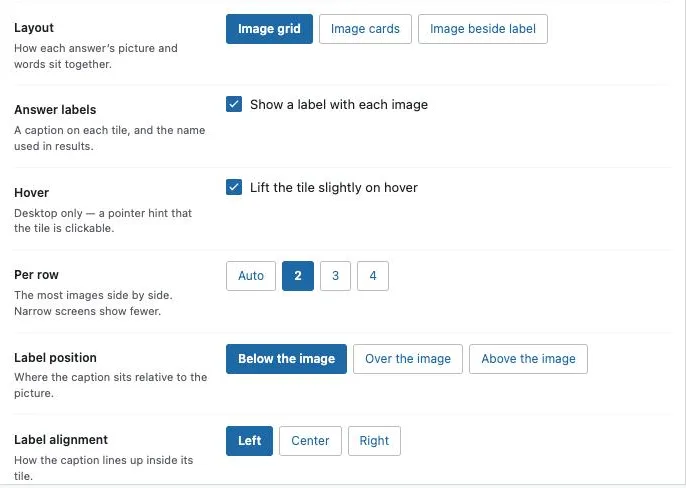
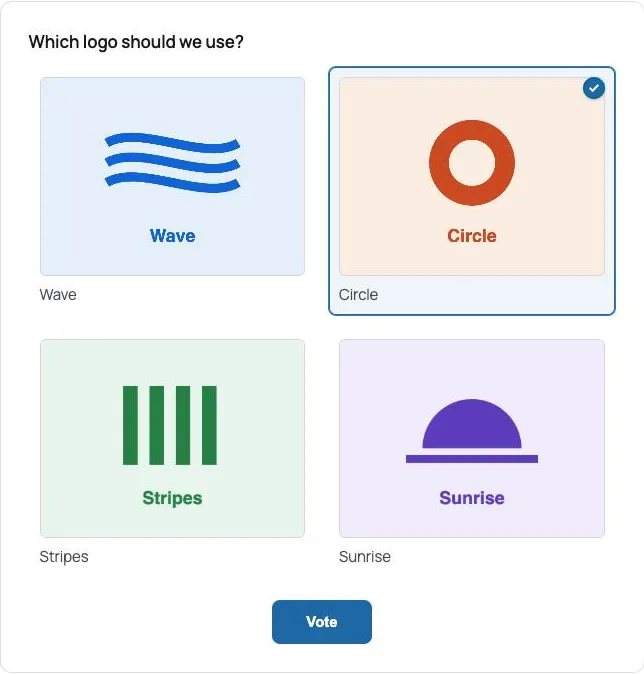
- Layout: Image grid (pictures side by side), Image cards (each picture with its label and an extra line of text), or Image beside label (a small picture next to each label, like a list). Video questions have Video grid and Video cards.
- Per row: Auto, 2, 3 or 4. This is the most tiles side by side. Phones show fewer.
- Answer labels: Show a label with each image, and where it sits: Below the image, Over the image or Above the image.
- Hover: Lift the tile slightly on hover, a small hint on desktop that the tile can be clicked.
Audio questions use the regular Arrangement setting instead: Vertical, Horizontal or In columns.
With Image cards or Video cards, each answer’s options panel also has Extra text, a line under the label.
Step 4: Let visitors pick more than one (optional)
By default, visitors choose one answer. For a “pick your top three” vote, tick Visitors can choose more than one answer in Options, then set At least and At most.
How visitors vote
- Images: visitors click the picture. The chosen tile gets a colored ring and a tick in the corner.
- Videos: visitors can play each video without voting. To choose, they click the radio button under the video.
- Audio: each answer has its own player. Visitors listen, then click the radio button next to the label.
Keyboard users can move between answers with Tab and the arrow keys and choose with Space.
Make the tiles match your site
In the Styles tab, the Media tiles section controls the frame of image and video answers:
- Selected ring colour, the ring round a chosen tile (by default it follows the poll’s accent color).
- Corner radius, how rounded the tiles are.
- Gap between tiles, the space between them.
- Selected ring, how thick that ring is.
What the results look like
The results keep the media next to each answer’s bar:
- Image answers show a small thumbnail with the label.
- Video answers show a still: the video’s own thumbnail for YouTube, or a play mark for other sites.
- Audio answers show the player, so people can listen again.
You choose who sees the results, and when, in Settings → Results, as with any poll.
Tips for better media polls
- Use the same shape for every picture. In a grid, every picture is cropped to the same 4:3 frame, so pictures of very different shapes lose their edges. Landscape pictures close to 4:3 work best.
- Keep files small. Large pictures slow the page down. Resize them before uploading, ideally to a few hundred pixels wide for a grid.
- Write labels anyway. Short labels make the results easy to read, and help visitors who can’t see the pictures.
- Mention embedded videos in your cookie policy. A YouTube or Vimeo player loads from that site, which may set its own cookies. If your site asks for cookie consent, check what your cookie policy says about embedded videos.
- Don’t delete files you’ve used. The poll points to the file in your Media Library. If you delete it, that answer shows a broken picture or player.
Common mistakes
- Saving with an answer that has no media. The poll won’t save until every answer has its picture, video or clip.
- Pasting a video page that isn’t from YouTube or Vimeo. Other sites need their embed code, not the page link. The Video box says Ready to show once it can display the video.
- Huge photos straight from a phone or camera. They make the poll slow to load. Resize first.
- Leaving Alt text empty on pictures that need explaining. The label is read instead, which is fine when the label already describes the picture.
Frequently asked questions
Can I make an image poll with the free version of YOP Poll?
No. Image choice, Video choice and Audio choice are part of YOP Poll Pro. The free version shows them with a PRO badge so you can preview how they look.
Can I mix pictures and text answers in one question?
No. In an image question, every answer has a picture. You can still add a regular text question to the same poll, since Pro also allows several questions in one poll.
Can visitors enlarge a picture before voting?
Not inside the poll. Pictures are shown at tile size, so choose pictures that are clear when small, or use Image cards with Extra text to add a short description.
Which video sites work?
YouTube and Vimeo links work as they are. For other sites, paste the embed code from the site’s share or embed option.
Can I stop people voting twice in a photo contest?
Yes, with the same settings as any poll. See how to stop multiple votes in a WordPress poll.
Next steps
Pick one question you’d normally ask in words and ask it with pictures instead: a design, a product photo or a cover. If you don’t have Pro yet, see what YOP Poll Pro adds.
Written by YOP Team, the author of the plugin.
Questions or corrections: ask in the YOP Poll support forum on WordPress.org (opens in a new tab), or contact us.